
Spotify has no export button. You can share a playlist link, but you can't download the track list, print it or open it in a spreadsheet from the app itself. So we tested the ways that do work. Below are four free methods to export a Spotify playlist as a PDF, an image, a text list or a spreadsheet, and the same tricks for YouTube and Apple Music. Every screenshot in this guide comes from our own test runs on real public playlists.
Which export method do you need?
It depends on what you want to do with the playlist afterwards:
| You want | Use | You get |
|---|---|---|
| To keep or share the playlist as it looks on screen | Method 1: full page screenshot | One PNG, JPG or PDF with every track, covers included |
| A quick list to paste into a message or a doc | Method 2: copy and paste | One track link per line |
| Titles, artists and albums in columns | Method 3: CSV export | A spreadsheet you can sort and filter |
| Paper | Method 4: print | A printed or PDF track list with page breaks |
Method 1: Save a Spotify playlist as a PDF or image
This is the method we use most. A screenshot of the playlist keeps everything a list loses: the cover, the order, the artwork of every track and the total running time. But a normal screenshot only shows what fits on the screen, and the Spotify web player makes things worse by scrolling the track list inside its own panel instead of the page. You need a full page screenshot tool that can scroll that panel by itself and stitch the result together.
We used FullPage Capture, which is free and works in Chrome and Edge. It takes four steps:
- Install FullPage Capture, a free full page screenshot Chrome extension (there's also a full page screenshot add-on for Edge).
- Open the playlist in the Spotify web player at open.spotify.com. Close any cookie banner first so it doesn't end up in the picture.
- Click the extension icon, or press Ctrl+Shift+K (⇧⌘K on a Mac). The extension scrolls the track list on its own while it captures.
- When the result tab opens, pick Save PNG, Save JPG or Save PDF.
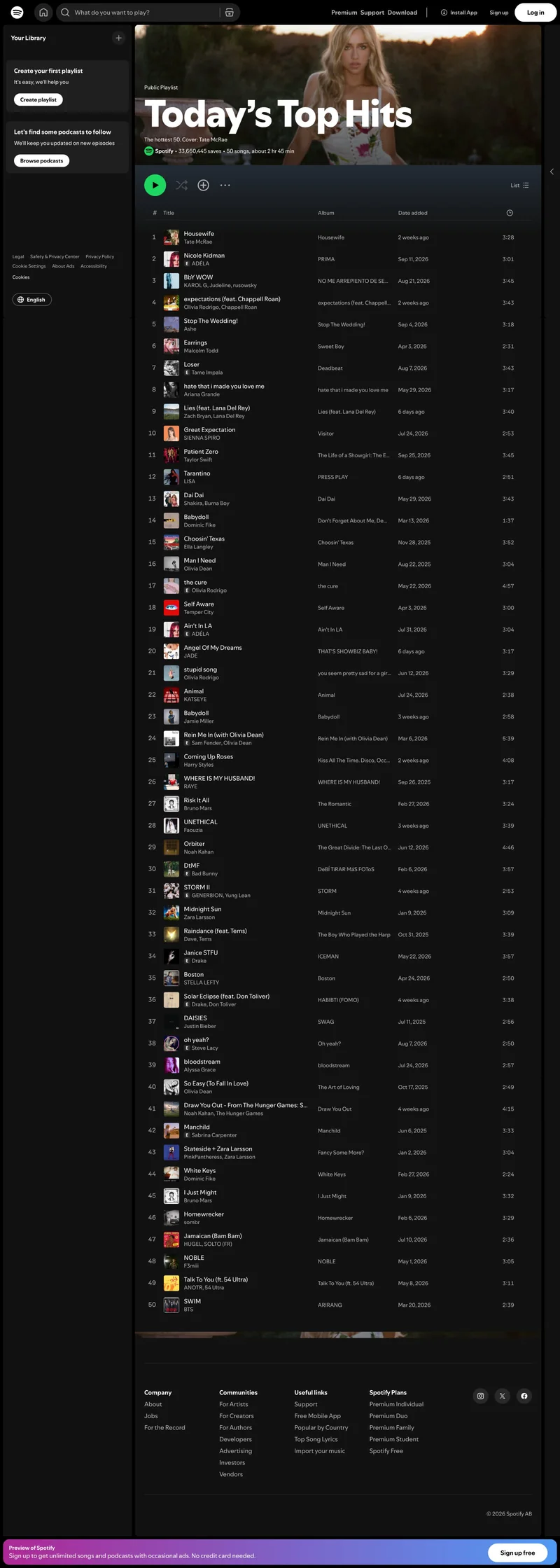
On Spotify's "Today's Top Hits" the capture took under 30 seconds. It went through the list in five screens and produced one image 4,030 pixels tall with all 50 tracks, from track 1 to track 50, with no gaps and no repeated rows.
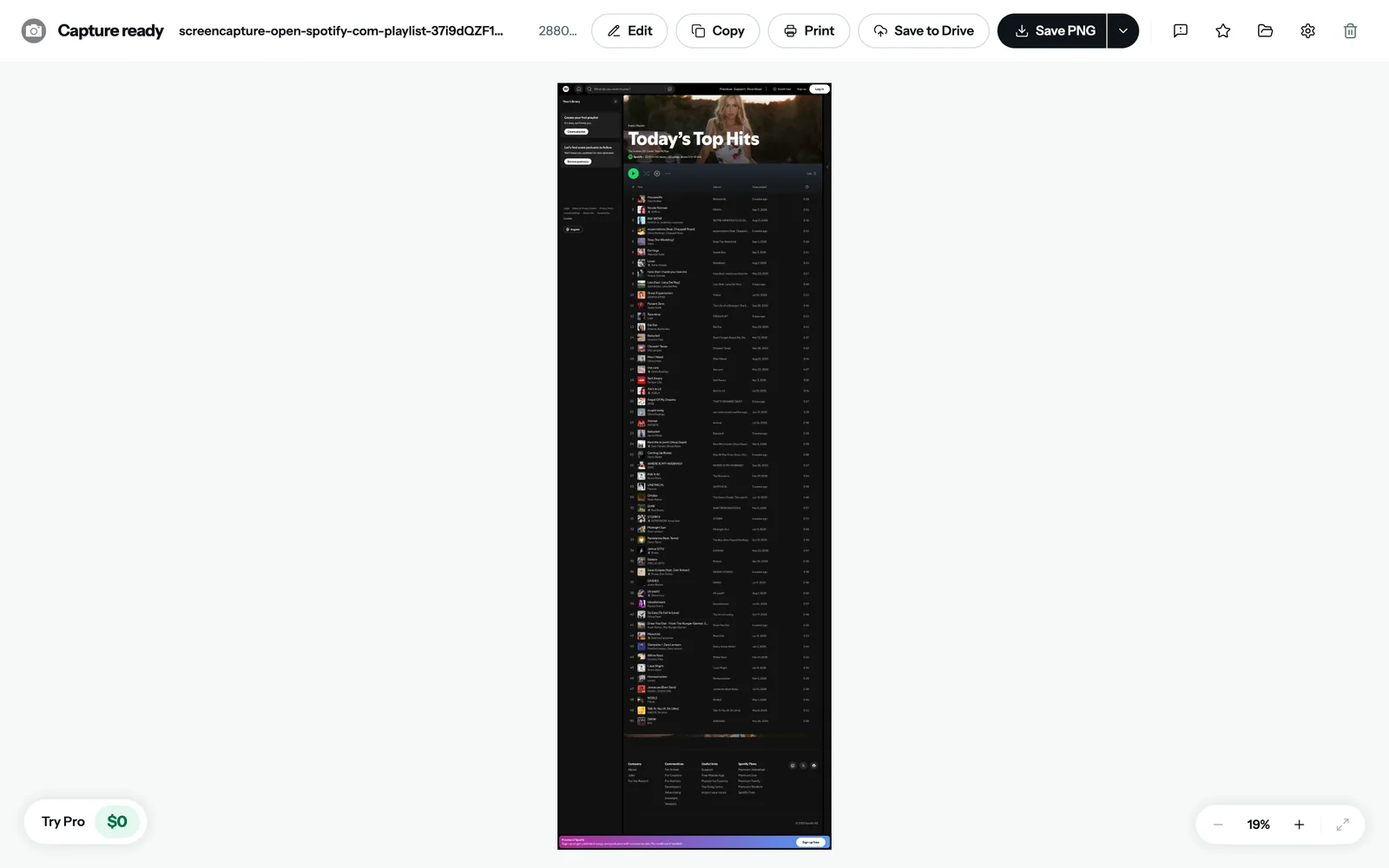
The capture opens in its own tab. From there you can edit it, copy it, print it or save it:
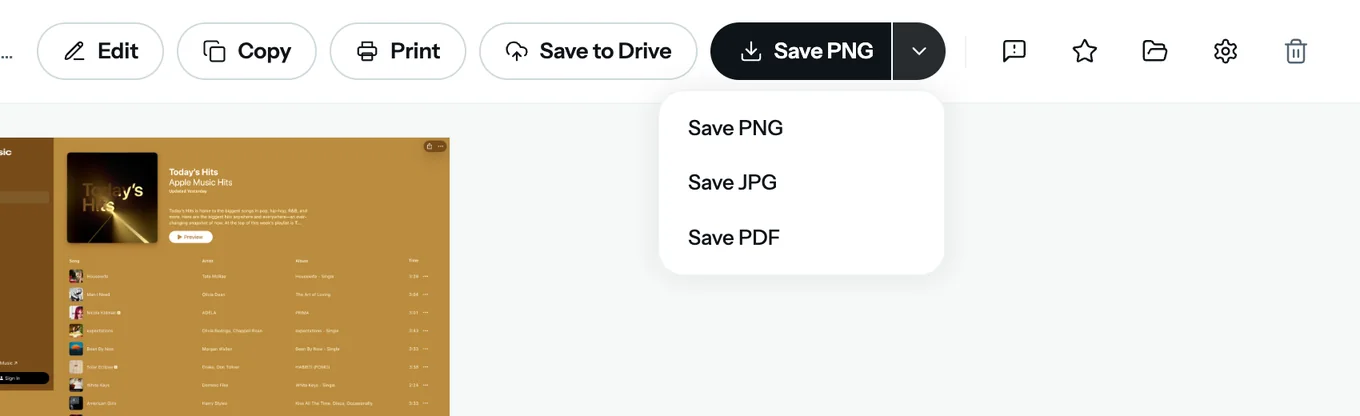
PDF is the best choice if the playlist is going into a document or an email. The extension can save a webpage as a PDF either as one long page or split into Letter, Legal or A4 pages, and it keeps the page's links clickable. A PNG is better for social posts and group chats.
A few things we noticed while testing:
- Logged in or not, it works. Logged out, Spotify adds a "Preview of Spotify" bar at the bottom of the page, and it shows up at the bottom of the capture. Logged in, your own library appears in the sidebar instead.
- Very long playlists come out in parts. Chrome has a limit on image size, so a page past that limit is saved as several numbered images rather than one.
- Want just the list? Use the editor's crop tool to cut off the sidebar and the footer before you save.
Method 2: Copy a Spotify playlist as text
For a quick list, the Spotify desktop app is enough. Open the playlist, click any track, press Ctrl+A (Cmd+A on a Mac) to select every song, then Ctrl+C (Cmd+C). Paste into a document or a chat and you get one line per track.
The lines are track links, though, not names. That's fine if the person on the other end uses Spotify, and not very useful if you want to read the list. For names, use Method 1 or Method 3.
Method 3: Export a Spotify playlist to a spreadsheet (CSV or Excel)
If you need titles, artists and albums in columns, for a DJ set, a wedding playlist or just a backup, use a third-party exporter that connects to your Spotify account. Exportify, TuneMyMusic and Soundiiz all export playlists to CSV, which opens in Excel, Numbers and Google Sheets.
These tools ask for access to your Spotify library. Once you're done, you can remove that access under Manage apps in your Spotify account settings.
Planning a DJ set? If you have the tracks as audio files, the Playlist Analyzer adds an estimated BPM and key for each one and exports its own CSV, all in your browser.
Method 4: Print a Spotify playlist
Spotify can't print anything, so print a capture instead. Take a full page capture as in Method 1 and either hit Print in the result tab, or save a PDF split into A4 or Letter pages and print that. FullPage Capture places the page breaks for you, trying to keep rows from being sliced in half.
For a track list to hand out at an event, crop the capture down to the list first. It saves ink and looks tidier.
How to export a YouTube or Apple Music playlist
The full page method works the same way on other services. We ran it on two more public playlists:
- YouTube: the "Top 100 Songs Global" playlist came out as one image 13,175 pixels tall with all 99 available videos (YouTube hides one unavailable video). The list ends with the "Recommended playlists" row, so you know nothing was cut off.
- Apple Music: "Today's Hits" came out complete, all 50 songs down to the "50 songs, 2 hours 48 minutes" line under the list.
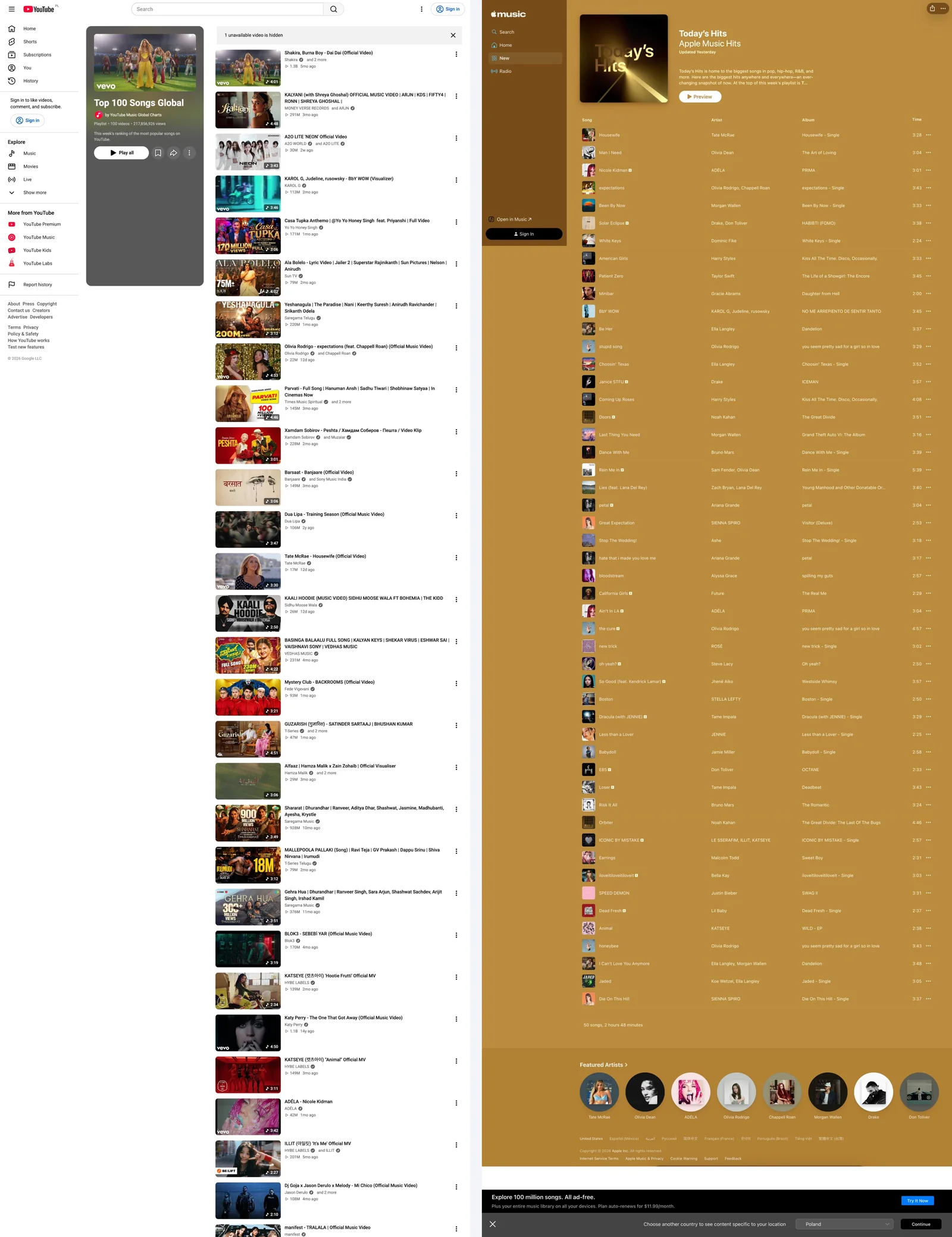
YouTube scrolls the page itself, which any decent scrolling screenshot tool can handle. Spotify, with its track list scrolling inside a separate panel, is the harder case, and that's the one to test before you trust a tool with your playlists.
Building a playlist from songs you heard elsewhere?
Most of our own playlists start with "what was that song?" If you keep hearing tracks in videos and streams, a free music identifier for Chrome names them from the browser tab, so you can add them to the playlist while the video is still playing. For clips that won't match, see how to find a song from a TikTok or Reel. And once the playlist is done, give it a cover that matches the music with our guide to aesthetic playlist covers.
Common questions
Can you export a Spotify playlist?
Not from Spotify itself. There's no export button, but you can save a playlist as an image or PDF with a full page screenshot extension, copy it as a list of links from the desktop app, or export it to CSV with a third-party tool.
How do I export a Spotify playlist to Excel?
Use a CSV exporter that connects to your Spotify account, such as Exportify, TuneMyMusic or Soundiiz, then open the CSV file in Excel. You get titles, artists and albums in separate columns.
How do I save a Spotify playlist as a PDF?
Open the playlist in the Spotify web player, capture it with a full page screenshot extension like FullPage Capture, then choose Save PDF in the result tab. You can save it as one long page or as A4, Letter or Legal pages.
How do I print a Spotify playlist?
Capture the whole playlist from the web player and use the Print button in the result tab, or save a paged PDF and print that.
How do I export a YouTube playlist?
Open the playlist page on youtube.com and take a full page capture. The extension scrolls through the list and saves every loaded video, with titles and thumbnails, as one image or PDF.
Save the whole playlist in one click, then find the next song for it.
Bottom line
Spotify won't export a playlist for you, but you don't need it to. For a copy that looks like the playlist on screen, take a full page capture and save it as a PNG or PDF. For a quick list, copy the tracks from the desktop app. For a spreadsheet, use a CSV exporter. The same full page trick works on YouTube and Apple Music, and in our tests it got every track on all three.